> ## Documentation Index
> Fetch the complete documentation index at: https://aspect.build/llms.txt
> Use this file to discover all available pages before exploring further.
# Testing and Debugging
> Add Python pytest tests in Bazel with py_test targets, configure BUILD files via aspect gazelle, and debug failing assertions in monorepo libraries.
This exercise uses `pytest` to add a simple test for the new library `mylib` you added.
Create a new file `mylib/say_test.py` containing the basic syntax for a Python test:
```python theme={null}
from mylib import say
def test_saying():
assert say.marvin("test") == "intentionally wrong"
```
Now you need to update the dependency graph, so run `aspect gazelle`.
The `mylib/BUILD` file now has a `py_test` target named `mylib_test` which you can test with `bazel test //mylib:mylib_test`.
Of course it fails, since the assertion was “intentionally wrong” but the function returns `None` - that’s good to know the test is running correctly!
You can replace that with `None` to see the test pass.
```python theme={null}
from mylib import say
def test_saying():
assert say.marvin("test") == None
```
## Debugging
To debug this test, you want it to run correctly in the editor, which doesn’t require Bazel at all.
You can use a virtualenv again. Find that `venv` target again:
```bash theme={null}
% bazel query --output=label_kind mylib:all
py_library rule //mylib:__test__
_py_pytest_main rule //mylib:__test___template
determine_main rule //mylib:_mylib_test.find_main
_jq_rule rule //mylib:data
_run_binary rule //mylib:make_header
py_library rule //mylib:mylib
py_test rule //mylib:mylib_test
py_venv_rule rule //mylib:mylib_test.venv
pip_compile rule //mylib:pip_compile
alias rule //mylib:pip_compile.update
pip_compile_test rule //mylib:pip_compile_test
filegroup rule //mylib:requirements
```
`//mylib:mylib_test.venv` will create a virtualenv specific to this test target, with the right set of dependencies included.
`bazel run` that target - the editor should offer to activate the new environment.
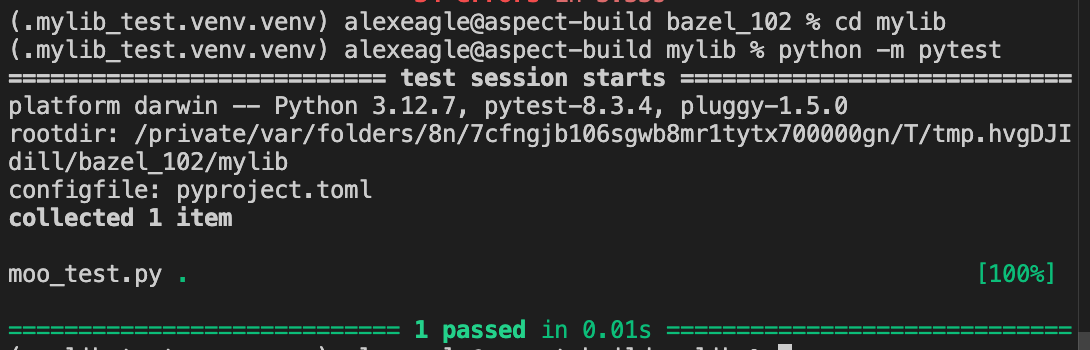
You can open a new terminal in the editor which uses the new virtualenv and see that you can directly run the Bazel-managed pytest.
That’s great since it means all tooling should just work here, including debuggers.
For example, an engineer can just run `pytest` and forget about Bazel:
 For Visual Studio Code, the steps to debug are:
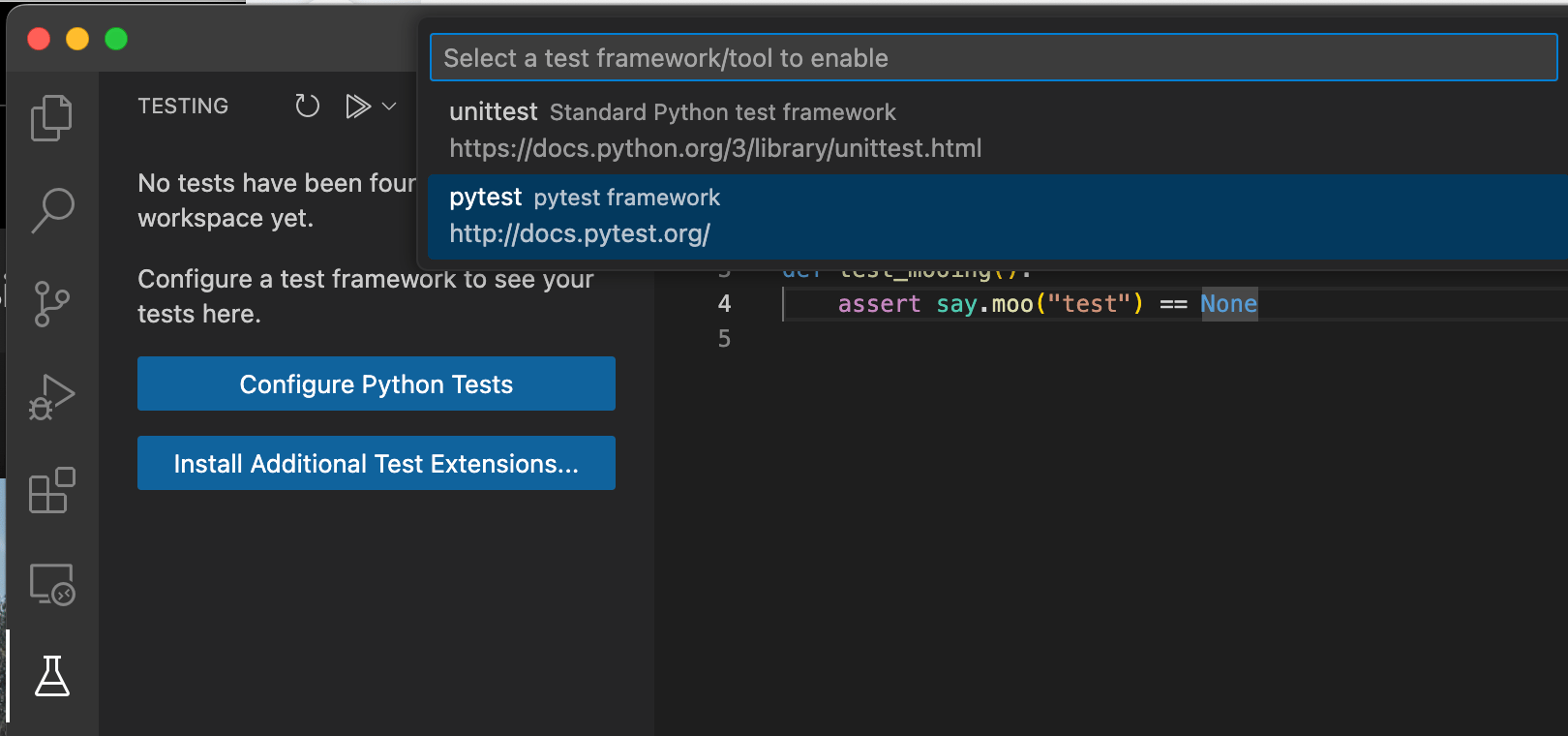
* open the “Testing” view, click “Configure Python tests” and choose “pytest”, then choose the “mylib” folder.
For Visual Studio Code, the steps to debug are:
* open the “Testing” view, click “Configure Python tests” and choose “pytest”, then choose the “mylib” folder.
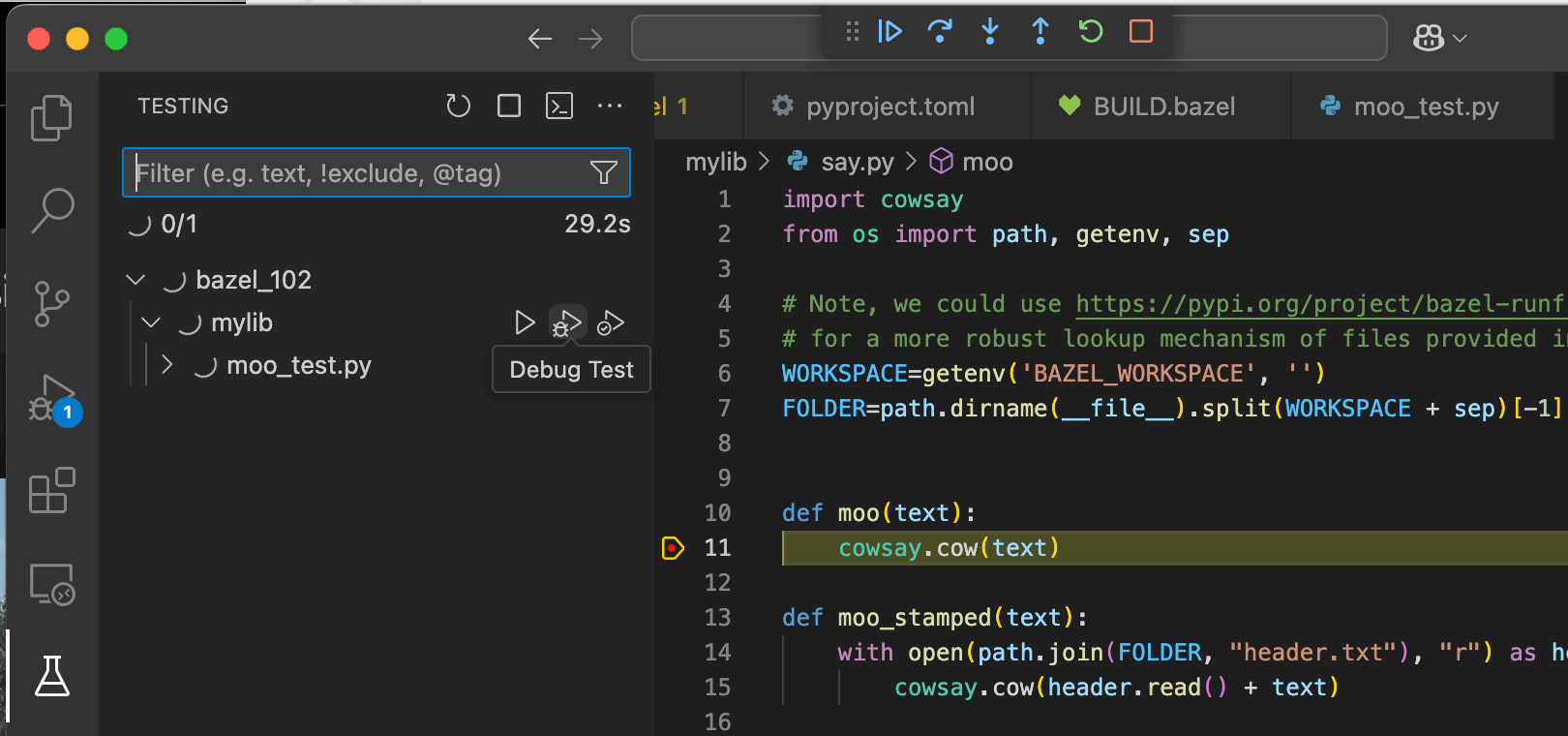
 * Set a breakpoint, maybe at line 11 of `mylib/say.py` which you know the test will call.
* Choose the “debug test” icon for the file, and the IDE stops at the breakpoint:
* Set a breakpoint, maybe at line 11 of `mylib/say.py` which you know the test will call.
* Choose the “debug test” icon for the file, and the IDE stops at the breakpoint:
 This documentation is built and hosted on [Mintlify](https://mintlify.com), a developer documentation platform.